Alla guider
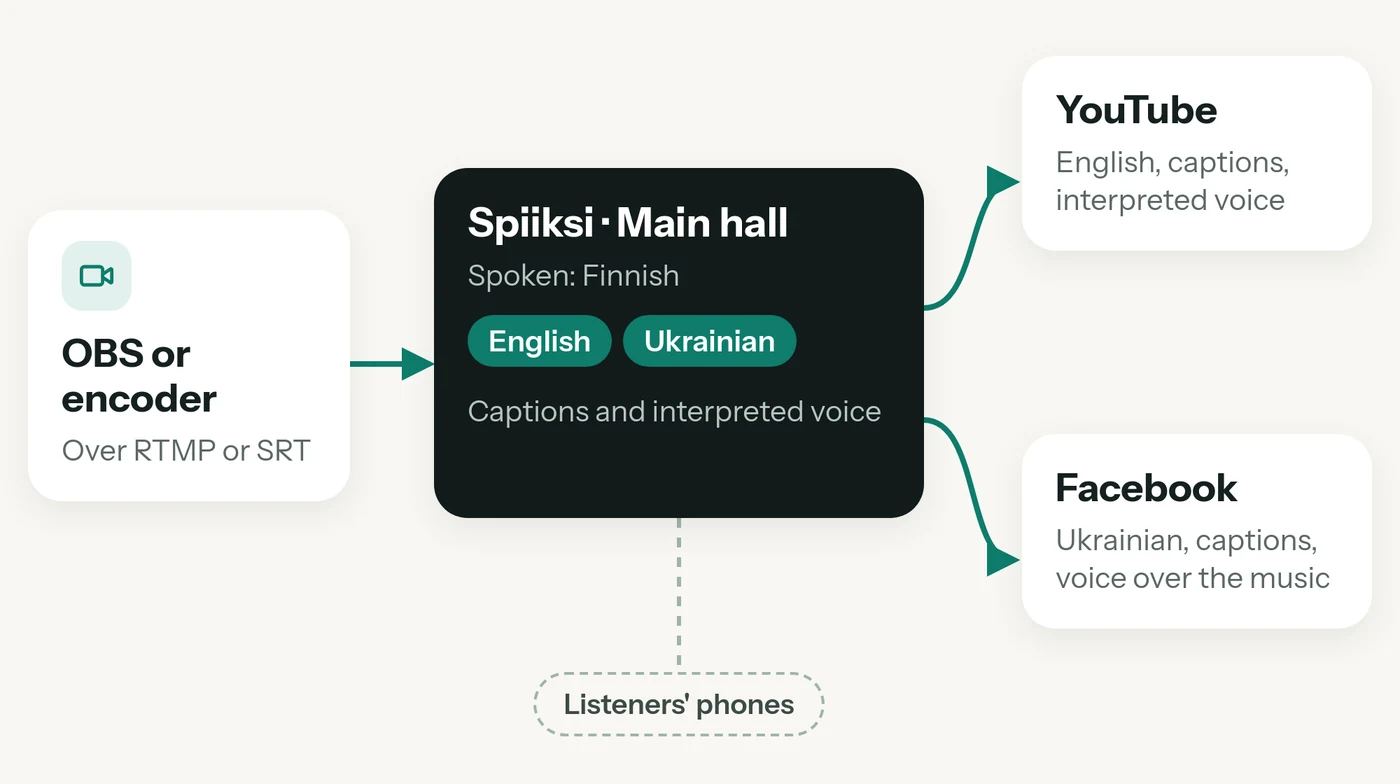
A room of your event can take its sound from a video stream: OBS, vMix or a hardware encoder sends the picture and sound to Spiiksi, Spiiksi interprets the sound into the room's languages as usual, and then sends the picture on to your own platforms. Each platform gets one language, with captions on the picture and the interpreted voice as the sound. Your encoder streams once, to Spiiksi, and listeners in the room still follow on their phones.
Video streams are included in Pro and up: Pro, Max and Enterprise. See Planer.
What viewers see and hear
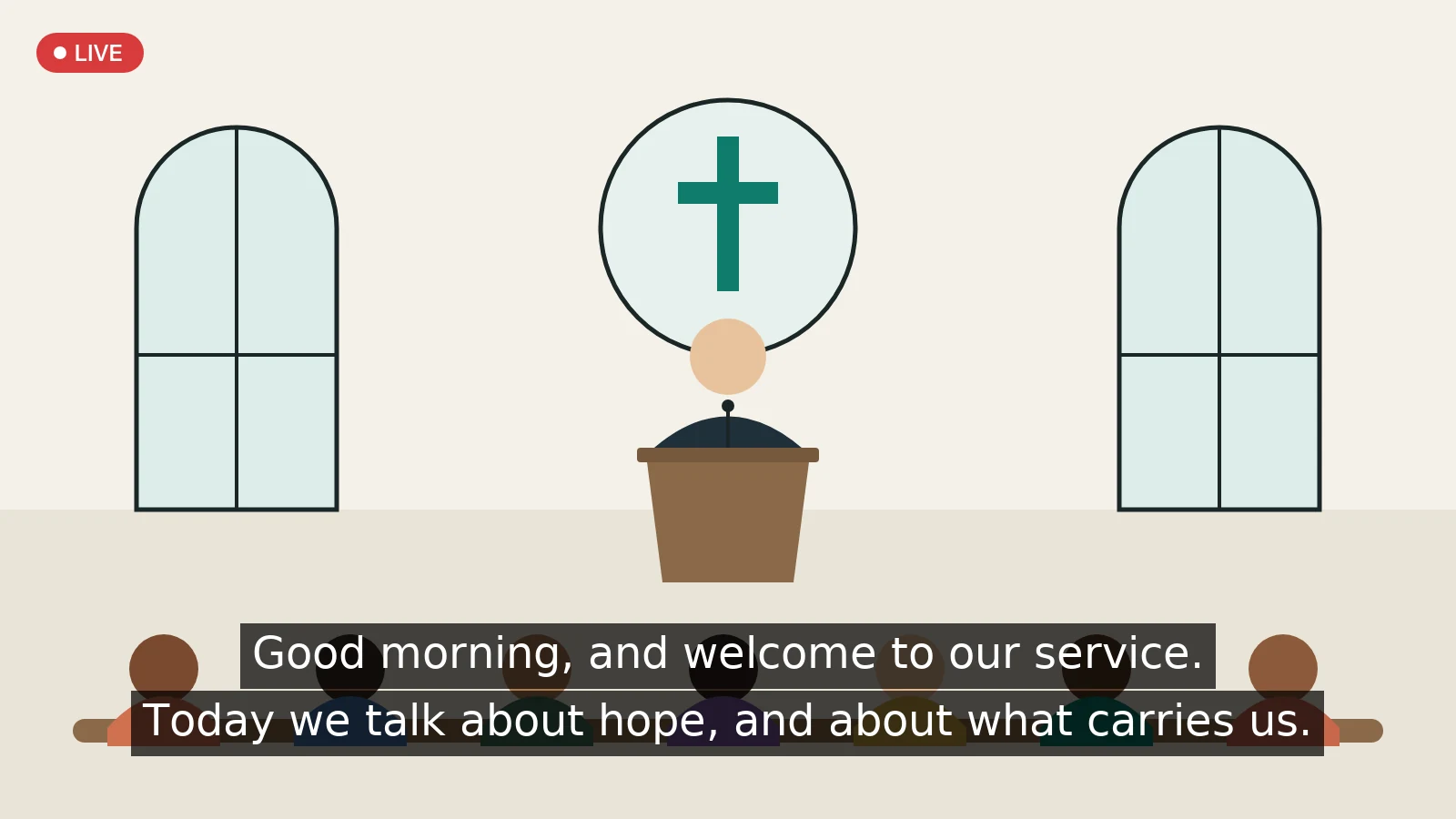
- The picture as you send it, or made smaller if you choose.
- Captions in the platform's language, drawn on the picture in the look you set under Captions for your stream: position, size, number of lines, a dark band or an outline.
- The sound you choose for each platform: the interpreted voice with the original sound in its pauses, the interpreted voice over the music, or the original sound. See The sound, in detail.
Viewers need no app and no link: everything is part of the stream they already watch.
Set up a room's video stream
- Open the event under Events, and choose the room under Rooms.
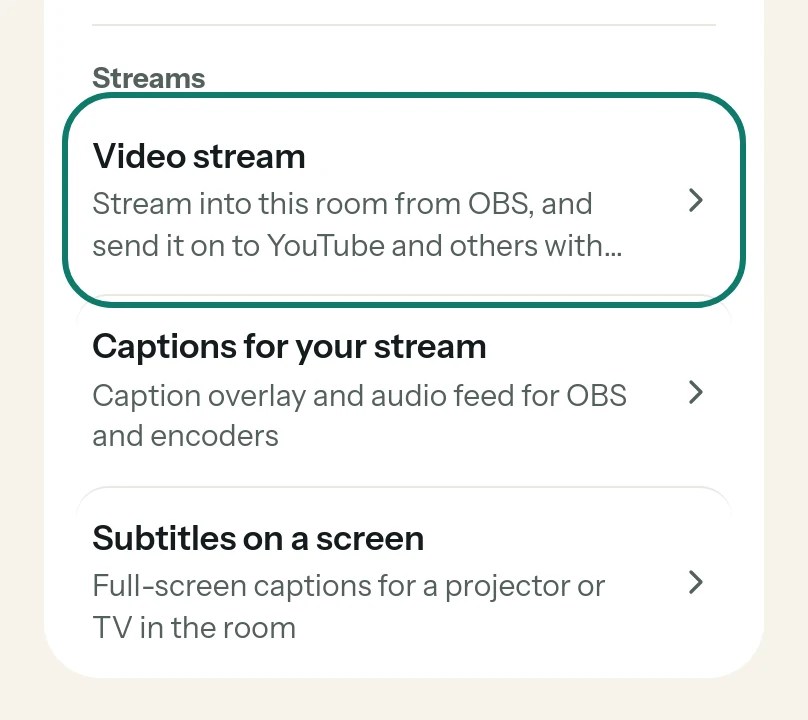
- Under Output, in Streams, press Video stream.
- Press Set up video stream.
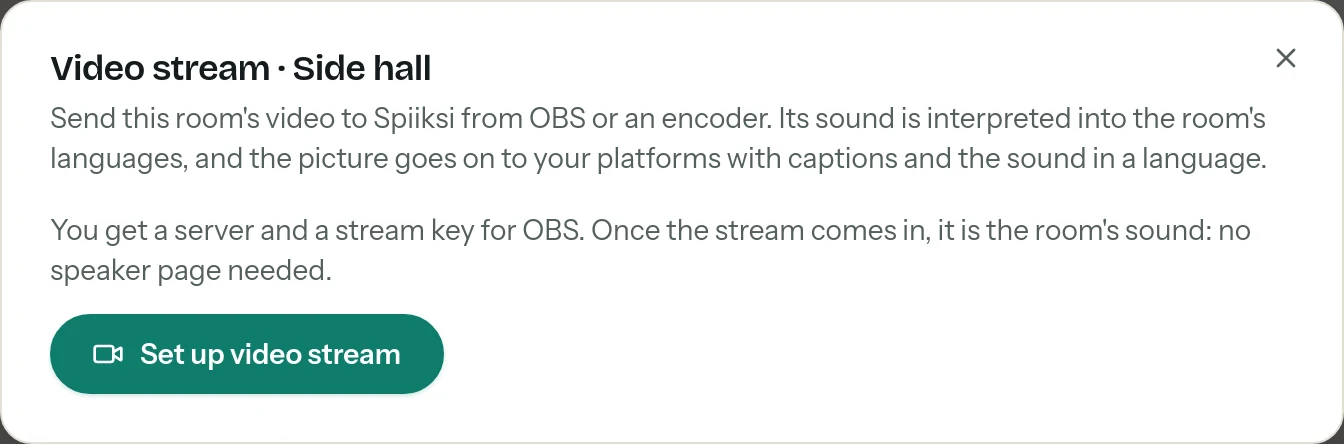
The dialog then has two parts: Video in and Video out. Each room has its own video stream, with its own key.
Video in: connect OBS or an encoder
In OBS, open Settings → Stream, choose the service Custom…, and paste the Server and the Stream key from the dialog. vMix and hardware encoders take the same, or the SRT address. Start streaming, and the dialog shows Receiving.
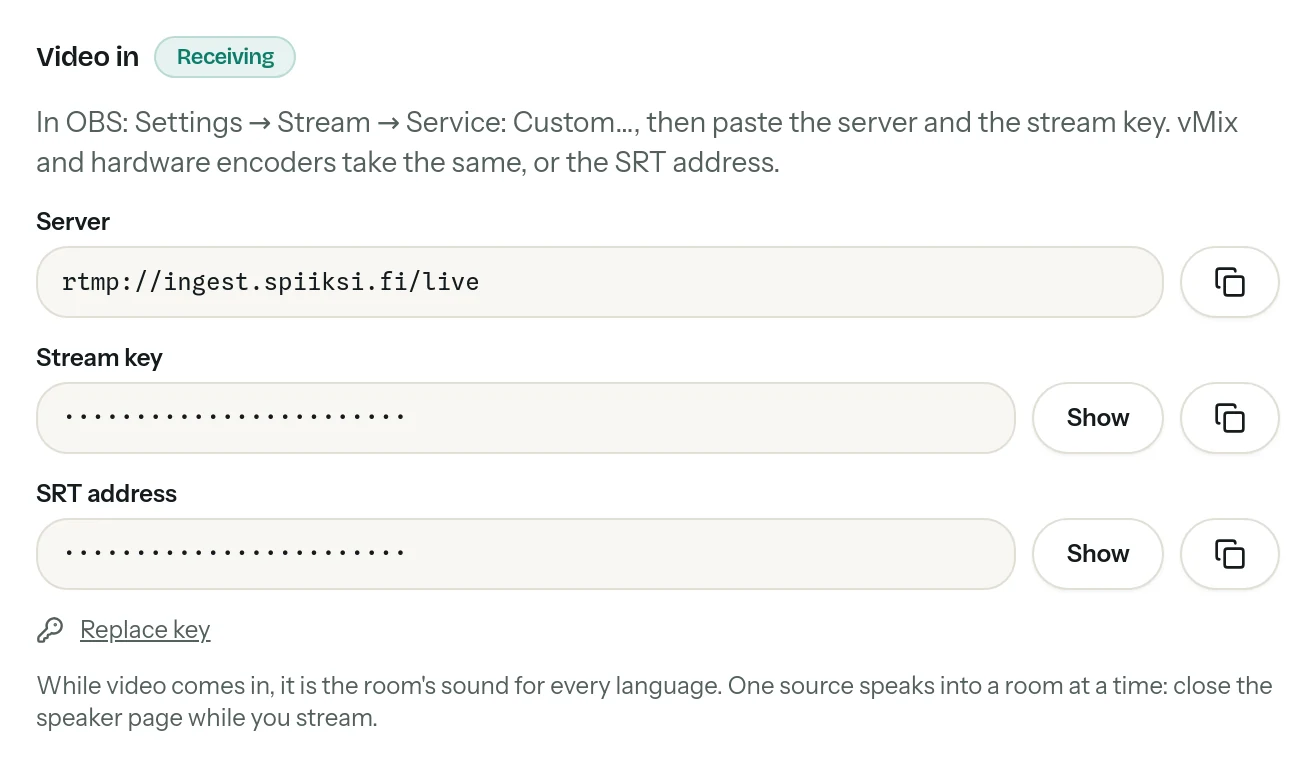
- The key stays the same for every broadcast, so a weekly service can keep the same OBS settings. Replace key makes a new one if the old one has spread; the old key stops working at once, so paste the new one into OBS.
- While video comes in, its sound is the room's sound for every language. A room takes one source at a time: the speaker page or the video stream. Close the speaker page while you stream. If the speaker page is on air when the stream starts, the stream takes over within about half a minute of the speaker page closing.
- Only the sound of the stream is interpreted. Interpretation and captions are billed as for any broadcast, only while sound arrives. Sending the stream on has no separate charge.
- The stream needs RTMP or SRT, which carry the picture. The browser audio page sends sound only, so it can't be sent on.
Video out: send it on to your platforms
Press Add a destination and fill in:
- Name: what you call it, for example "YouTube in English".
- Language: the language this platform gets, or the original language.
- Server (RTMP or RTMPS) and Stream key: from the platform's live streaming settings. In YouTube Studio, they are under Go live → Stream settings; in Facebook, under Live Producer → Streaming software; in Twitch, under Creator Dashboard → Settings → Stream. Any other RTMP or RTMPS server works the same way.
- Captions on the picture: on or off.
- Sound: see The sound, in detail.
- Picture: As sent, or 1080p, 720p or 480p, with the Video bitrate (kbps). The bitrate is set to suit the size you choose.
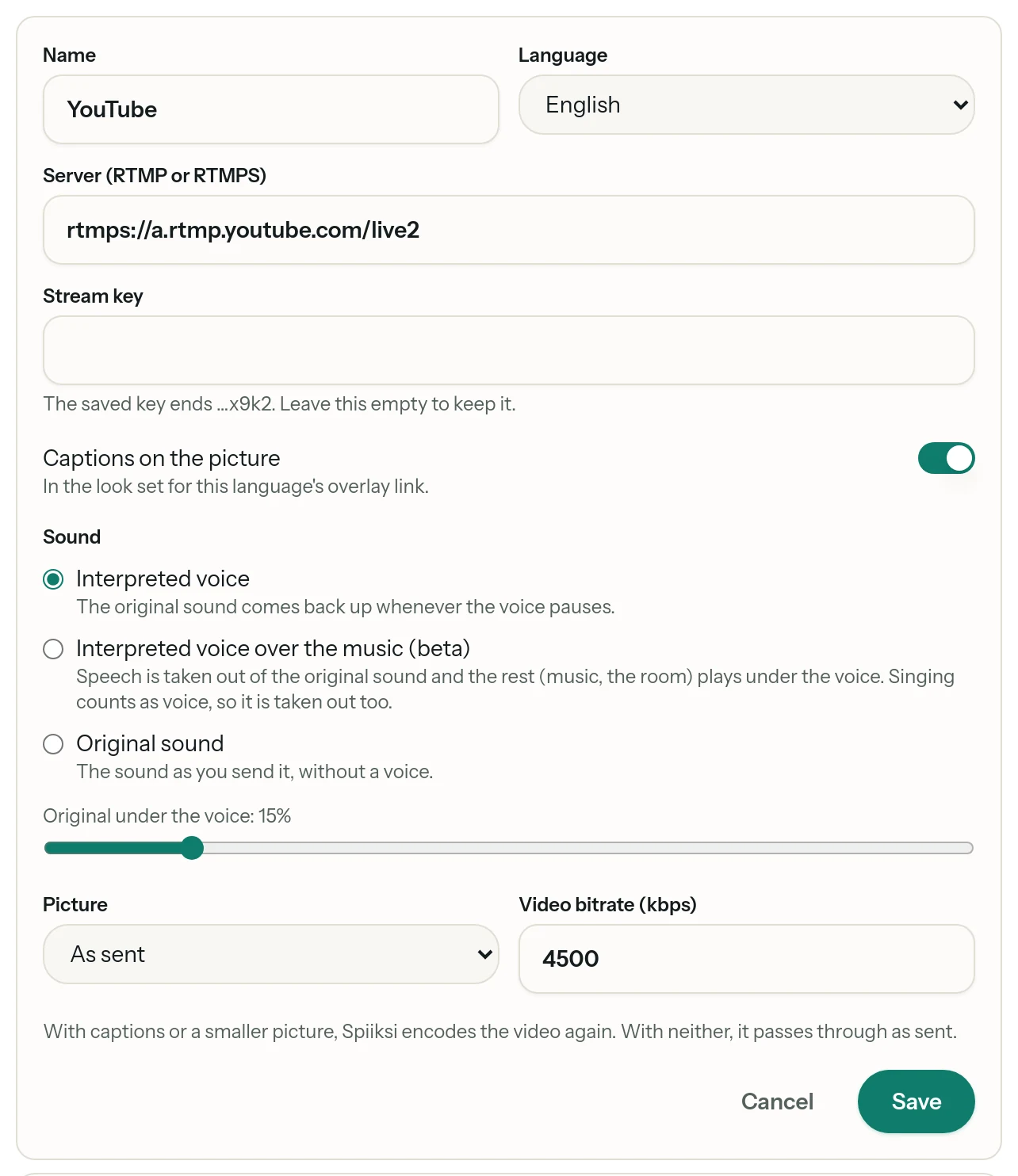
Press Save. A stream can go to up to four destinations at once, each in its own language and with its own settings.
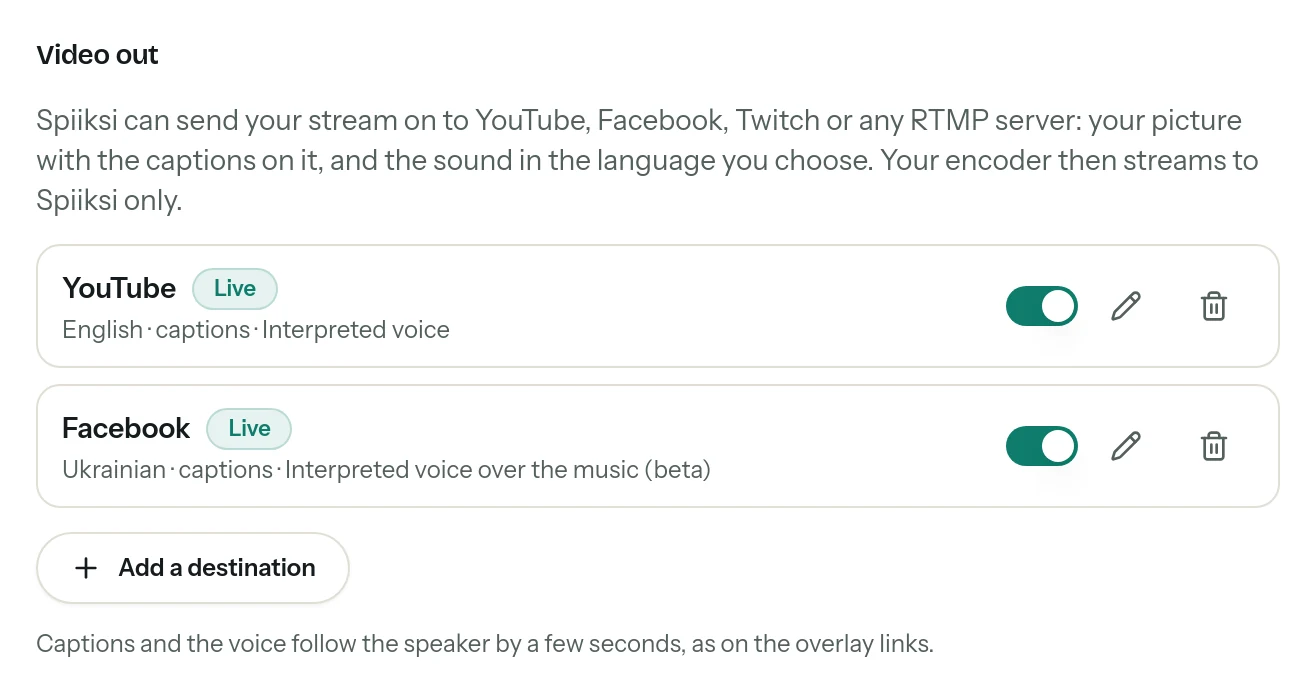
Each destination starts when your stream reaches Spiiksi, and stops when it ends. While the stream runs, each one shows its state:
- Connecting: Spiiksi is reaching the platform.
- Live: the picture and sound are going out.
- Reconnecting: the platform dropped the connection or refused it, with the platform's reason under the name. Spiiksi keeps trying, and the other destinations carry on.
The switch next to a destination pauses it without deleting it; the pencil changes it and the bin removes it. A change reaches the platform within a few seconds: that destination reconnects, the others don't notice. The stream key is never shown again after you save it; leave the field empty when you change other settings, and the saved key stays.
The sound, in detail
Interpreted voice
The interpreted voice is the sound, and the original sound comes back up whenever the voice pauses: the room, applause, music between talks. The slider Original under the voice sets how much of the original stays under the voice while it speaks: 0% leaves the voice alone, and a little, such as 15%, keeps the feel of the room.
Interpreted voice over the music (beta)
Speech is taken out of the original sound, and the rest, such as music and the room, plays under the interpreted voice, at the volume you set with Music and sounds. It suits a stream where music and speech overlap. Singing counts as voice, so it is taken out too, and music sounds a little quieter while someone talks over it. For a service with sung worship, Interpreted voice often works better: the songs come through in full in the voice's pauses.
Original sound
The sound as you send it, without a voice: for captions only, or for a platform in the original language.
A language without an interpreted voice, such as a captions-only language or the original language, always sends the original sound.
Tips
- Test before the event. Create a private or unlisted live event on the platform, start streaming in OBS, and check the picture, the captions and the sound there. Destinations go live as soon as your stream reaches Spiiksi.
- Start the platform's event first. Some platforms accept a stream only while their live event is set up and waiting for it.
- Captions and the voice follow the speaker by a few seconds, as on any live interpretation. The picture is not delayed.
- The picture is only encoded again when it has to be. With captions on the picture or a smaller size, Spiiksi encodes the video again at the bitrate shown. With neither, the picture passes through exactly as sent.
- For captions you add yourself in OBS, for example over a scene of your own, use the overlay links under Captions for your stream instead; see Textning i en livesändning.
- Good sound gives good interpretation: feed the mixing desk's output to your encoder; see Ljudinställningar och felsökning.
If something doesn't work
- Not receiving: check the server and the stream key in OBS, and that OBS shows it is streaming. If the key was replaced, paste the new one. A plan that has ended stops the room's video: renew it under Billing → Plans.
- Reconnecting: the reason under the destination's name comes from the platform. Most often the stream key is wrong or out of date, or the platform's live event isn't ready. Copy the key again from the platform and paste it into the destination.
- No interpreted voice on the stream: the language has no interpreted voice, or interpretation isn't running, for example with no balance or card to pay for it. The original sound plays meanwhile.
- The speaker page won't go live: the room's video stream is on air. Stop streaming in OBS, or use another room for the speaker.
- "Video streams are included in Pro and up": the organization's plan is Basic or Starter. See Billing → Plans.
Var guiden till hjälp?
Frågor om detta?
Fråga assistenten. Den svarar utifrån den här guiden, på svenska.